
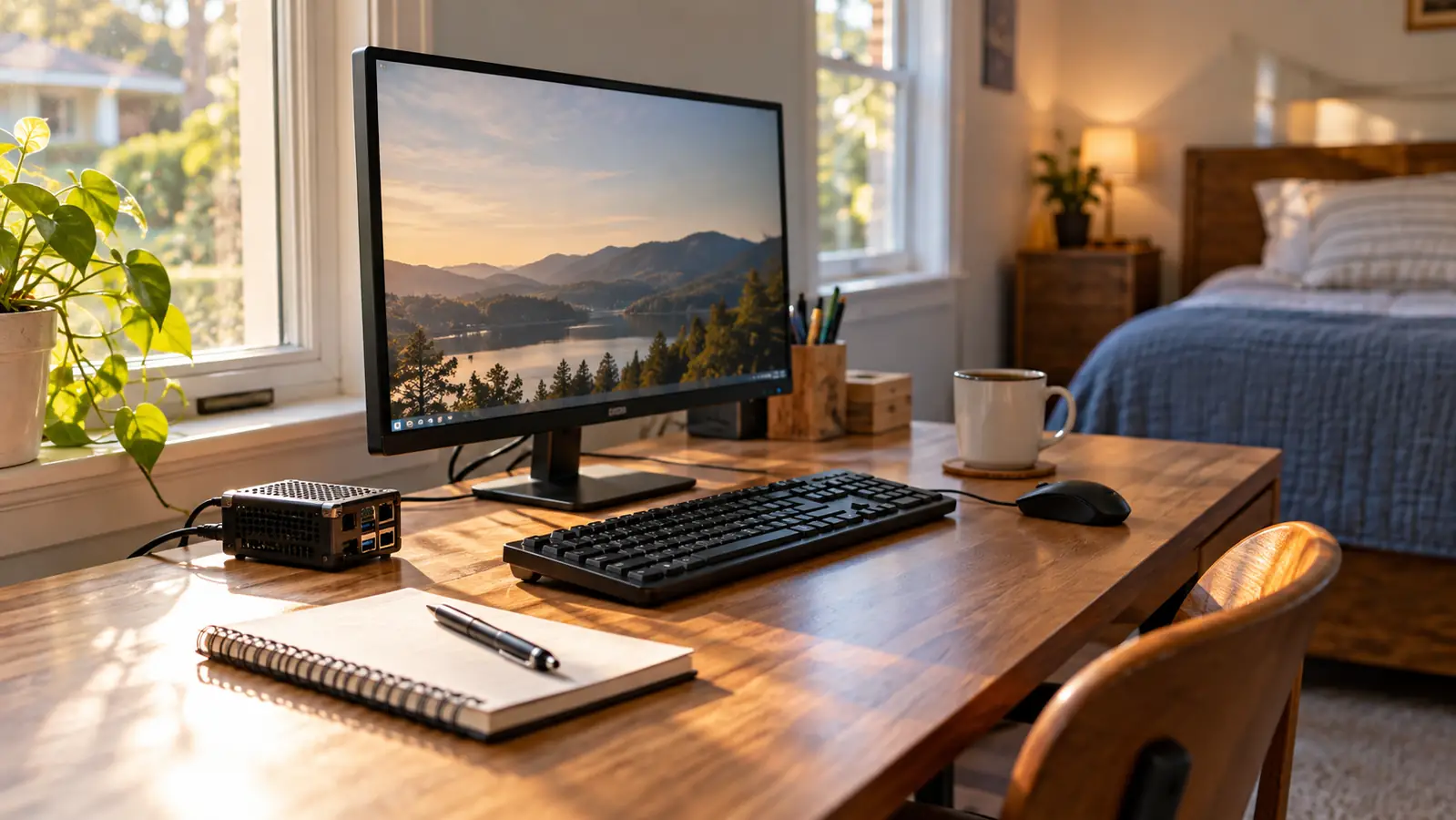
I bought the CanaKit Raspberry Pi 5 Starter Kit PRO in February 2025 for one small reason: I was tired of unplugging a laptop. For a year before that, my practice machine had been a used Dell Latitude I bought in February 2024, and I ran Linux on it from a USB drive. Every session began with the same ceremony. Shut the Dell down, pull the drive, plug it into the other laptop to save my notes, plug it back in, change the boot order, wait. My nephew Theo, who is 31 and works as a network technician for a school district, watched me do it one Saturday and said, Aunt Corinne, just get a Pi. I did not know what a Pi was.
I know now. I am 56, I have worked as a hospital billing clerk for 24 years, and I still do, five days a week. I am not a tech person and I am not going to pretend to be one for the length of this review. What I am is 21 months into owning a CanaKit kit, which is long enough to know what I use, what I ignore, and what I got wrong in the first week. CanaKit sells this as a starter kit, and that word is doing a lot of quiet work. Here is the plain version, from someone who needed the plain version.
The Quick Verdict
The kit I would hand to a nervous adult who wants a small computer that stays set up on the desk. It did not make me a technician. It gave me a machine I was not afraid to break.
Amazon Check Today's Price →The computer that is already assembled and already running
This is the kit that ended the unplug-and-replug ritual for me. Board, card, case, fan, heat sink, power supply and display cables in one box, with the operating system already on the card.
Amazon Check Today's Price on Amazon →How I've Used It for 21 Months
The CanaKit box arrived in February 2025. I put it together on a Thursday evening at the desk in the back room, which is our spare bedroom, and it took me about 40 minutes. Most of that time was spent rereading the little instruction sheet because I was afraid of pressing too hard on something and snapping it. It booted on the first try from the card that came in the box. I remember sitting there waiting for it to fail. It did not fail.
Since that night it has not moved. It sits on the back room desk connected to a 22-inch monitor, a wired keyboard and a wired mouse, all of which Theo gave me when his office replaced theirs. My study schedule is Tuesday and Thursday evenings from 7 to 9, plus Saturday mornings. Not every day. I say that out loud because nearly every guide I read in 2024 assumed daily practice, and I am a woman with a full-time hospital job who started learning this at 54. Daily was never going to happen, and a machine that stays plugged in and boots in under a minute is what makes two evenings a week enough.
What I actually do on it is narrow. The Linux terminal, mostly. File permissions, which confused me for the better part of a year, and moving through folders without a mouse. Small Python scripts that do nothing useful, like printing a list of numbers and sorting it. I have never overclocked it, which is a way of pushing the processor past its normal speed, because I do not need faster and I do not want to explain to Theo how I cooked my Christmas present to myself. I shut it down properly after each session, from the menu, and I unplug nothing.
What Comes in the Box, and What I Had to Look Up
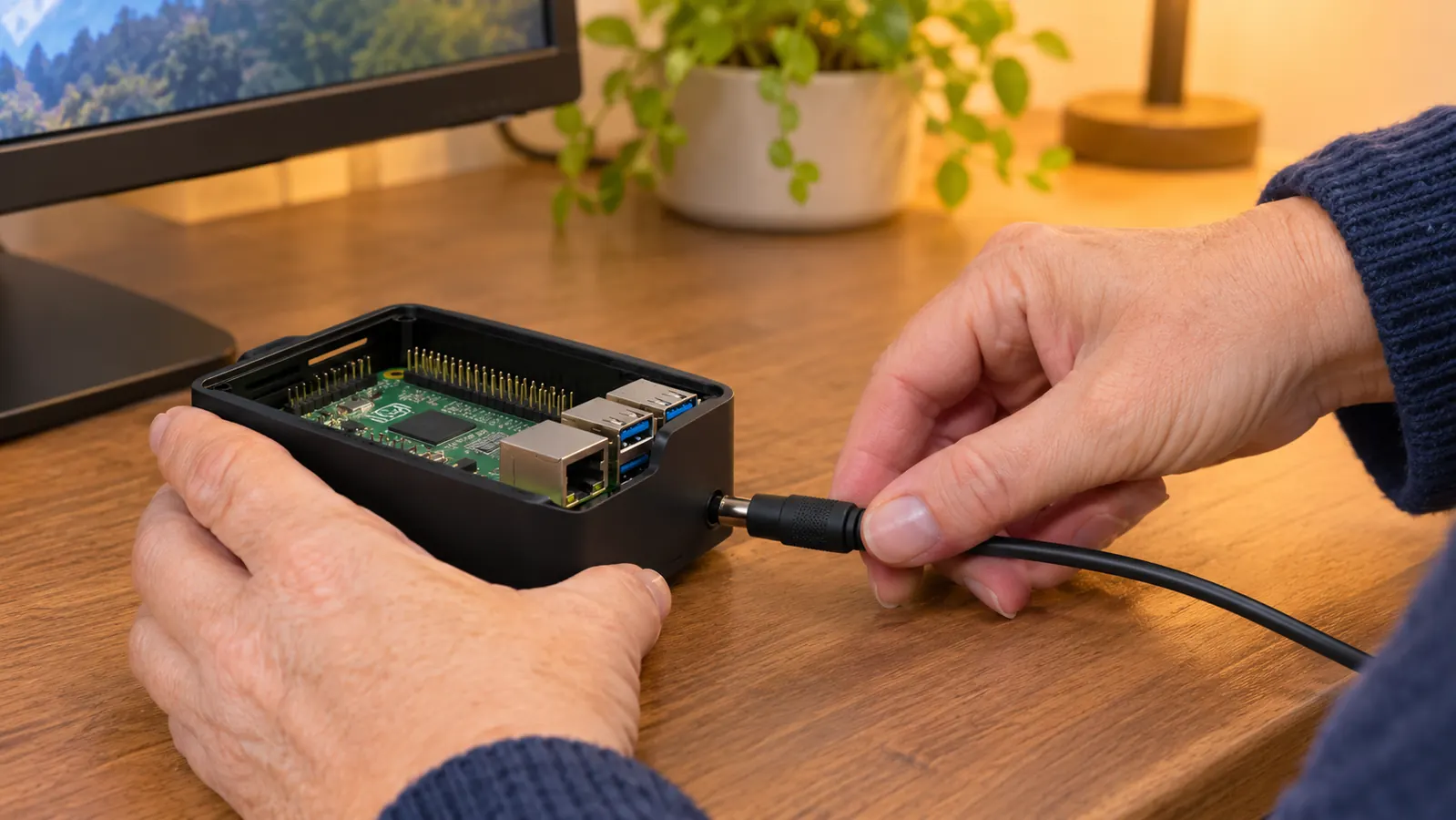
The board is a Raspberry Pi 5 with 8GB of RAM and a 2.4GHz 64-bit quad-core processor, which in plain terms means four working parts sharing the load and enough memory for the sort of small work a beginner does. Alongside it you get a 128GB microSD card, a USB microSD card reader, the case, a low noise bearing system fan, a heat sink, a 45W PD power supply, and two 6-foot display cables. The only thing missing is a monitor, a keyboard and a mouse, and I only had those because someone gave them to me.
The phrase I had to look up was pre-loaded operating system. What it means is that the card already holds the software that turns a board into a computer you can talk to. I did not download anything, I did not write anything to a card, and I did not need a second computer to prepare the first one. For a beginner, that single detail is the whole reason to buy a kit from CanaKit instead of a pile of parts, because preparing the card is exactly the step where a nervous person gives up.
The USB microSD card reader is the one piece I stopped using after the first week. It lets you read the card from another computer. I used it once, to look at the card and satisfy myself there was something on it, and then it went into the desk drawer with the twist ties. That is not a complaint about the kit. It is the honest accounting of a box that includes more than one person needs, and I would rather have the extra piece in a drawer than discover halfway through an evening that I am missing something.
The Card Is the Part That Trips Beginners Up
The 128GB card is this computer's hard drive. Everything lives on it. It is also roughly the size of a fingernail, which means it is the first thing a beginner loses. Mine has never come out of its slot since I confirmed it worked. If you take it out to look at it, put it straight back, and keep it in a dish or a drawer rather than on the desk where a sleeve will sweep it onto the floor.
The other thing that saved me was a paper notebook. Spiral, cheap, sits open next to the keyboard. I write the date at the top of the page and then whatever I typed and whatever the machine said back. Twice I broke something in the terminal and had no idea what I had done, and both times I read back through three pages and found the line. A notebook is not a technical skill. It is just what a 56-year-old billing clerk does instead of holding it all in her head.
One thing I want to be clear about, because starter kit can sound like a promise. Nothing in this box taught me anything. I had already spent a year on the terminal with the Dell and the USB drive, so the commands were familiar when I sat down. If you have never seen a terminal, the first two weeks on this machine will feel like being handed a piano with no labels on the keys. The kit does not fix that. A guide fixes that, and mine is a printed one I bought separately. What the kit does is stop getting in the way while you learn.
Heat, Fan, and the Power Supply, in Plain Words
A computer chip makes heat while it works, and too much heat makes it slow down or stop. A heat sink is a piece of metal that pulls heat off the chip. A fan moves air across the metal. This kit includes both, and they take about five minutes to fit. The fan has to be seated on the board and plugged into a small connector, and I got that wrong on my first attempt, which meant lifting the board back out of the case and starting over. Nothing broke. That is the entire story of my assembly mistakes.
The 45W PD power supply is the piece I would not swap for something from a drawer. A board that does not get the power it expects will behave strangely, and strange behavior is the hardest kind of problem for a beginner to track down, because nothing looks broken. Having the right supply in the box removes that whole category of confusion before you can stumble into it. I did not understand that in February 2025. I understand it now, after two years of reading forum posts where the answer was the power supply.
On noise: I sit about two feet from it for two hours at a stretch and I do not hear it. The house is quiet by 9 pm on a Tuesday. The refrigerator in the kitchen is louder than this machine. I expected a small fan to whine. It does not.

What It Taught Me, and What It Did Not
This did not get me a job. I still work in billing. I have worked in billing for 24 years and I expect to keep doing it. I am studying for CompTIA A+, which is two exams. I failed Core 1 in February 2026 and passed it on my second try in May 2026. I am working on Core 2 now and I have not sat it. The Pi did not pass anything for me, and I will not tell you it will pass anything for you. What I will tell you is what changed in my head.
A computer used to be a thing with moods. Now it is a thing with parts. When a permissions error shows up at work, I read it instead of clicking past it, and about half the time I know what it is telling me. That is not a certificate and it is not a raise. It is just less fear, which at 54 was the thing I actually wanted. The night I finally understood file permissions, I sat at that desk in the back room and said oh out loud, to nobody, and then I wrote it in the notebook.
It booted on the first try from the card in the box. I remember sitting there waiting for it to fail.
What I Liked
- The card arrives with the operating system already on it, so there is nothing to download or write before your first session.
- The 45W PD power supply is in the box, so you are not matching a supply to the board yourself.
- The fan and heat sink come with it and took me about five minutes to fit.
- Twenty-one months of Tuesday and Thursday sessions and nothing has been replaced.
- 8GB of RAM and a 128GB card are more than enough for terminal practice and small Python scripts.
- Two 6-foot display cables were included, so I did not have to guess which cable to buy.
Where It Falls Short
- The USB microSD card reader went in a drawer after week one and has not come out since.
- Nothing in the box teaches you. I still needed a printed guide, bought separately.
- No monitor, keyboard or mouse. I only had those because someone gave me his old ones.
- The fan has to be seated and plugged into a small connector on the board, and I got that wrong the first time.
- If all you want is a desktop for browsing and email, this is more machine and more fiddling than that job needs.
- After 21 months the case collects dust around the fan and I have to blow it out every few months.
Who This Is For
This is for the adult who has decided to learn this by hand and has already been embarrassed once by how fast the world moved. You want a small computer that sits in one place, stays wired up, and boots in under a minute so that a Tuesday evening actually produces two hours of practice instead of forty minutes of setup. You are the sort of person who will keep a notebook and write things down. You are not looking for a project, you are looking for a machine to practice on, and the fact that everything arrives together and already runs matters more to you than saving a little by sourcing parts separately. If you have a monitor, a keyboard and a mouse already, or a nephew with a spare set, you are most of the way there.
Who Should Skip It
Skip it if what you want is a cheap desktop for browsing, email and writing letters, because this asks more of you than that job does and you will not enjoy the asking. Skip it if you already own a working Linux machine, since the reason I bought this was to stop booting from a USB drive and you do not have that problem. Skip it if you want a kit to teach you, because the kit assembles and boots and then steps back. And skip it if you have no monitor, keyboard or mouse and no budget for them, because the box will not get you to a working screen on its own. I bought mine after a year of practice and I would not have started here on day one.
The one thing I would buy again at 54
Twenty-one months, two evenings a week, and it is still on the same desk running the same way it did the night it booted on the first try. If you want a small Linux machine that stays set up and does not need you to be brave, this is the one I own.
Amazon Check Today's Price on Amazon →